
Tips for Organizing Files on Your Computer Efficiently
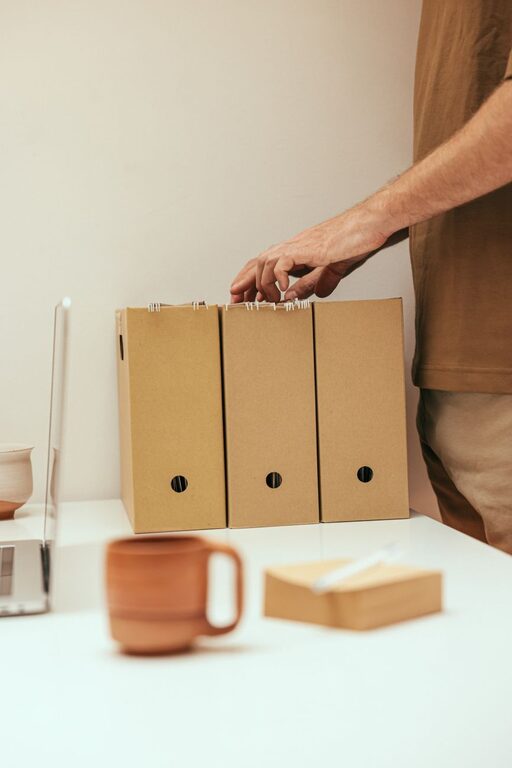
Keeping your digital files organized can save you time, reduce stress, and improve your productivity. Whether you use your computer for work, school, or personal projects, a well-structured system makes it easier to find what you need quickly. In this post, we’ll share practical tips to help you organize files on your computer efficiently.
Why Organize Your Files?
Over time, files can accumulate without any meaningful structure. This clutter can lead to misplaced documents, duplicated files, and wasted effort searching for important information. Organizing your files not only simplifies your digital life but also protects your data by making backups easier and more effective.
Start with a Clear Folder Structure
Creating a logical folder system is the foundation of good file organization.
Use Broad Categories First
Begin with high-level folders based on your main activities or file types such as:
– Work
– Personal
– School
– Finances
– Media (Photos, Videos, Music)
This helps separate different areas of your digital life, reducing confusion.
Break Down into Subfolders
Within each main folder, create more specific subfolders. For example, under “Work” you might have:
– Projects
– Reports
– Meeting Notes
– Clients
Similarly, under “Photos,” you could organize by year or event. Tailor subfolders to fit your needs and workflow.
Avoid Too Many Levels
While it’s good to be specific, avoid creating too many nested folders as this can make navigation cumbersome. Aim for 2-3 levels deep when possible.
Name Files Consistently
File names are crucial for identifying content without opening the file.
Use Clear and Descriptive Names
Instead of “Document1.docx,” try “MarketingPlan_March2024.docx.” This provides immediate context.
Include Dates When Relevant
For files that are updated regularly or have versions, include dates in the format YYYY-MM-DD to keep them in chronological order and easy to sort.
Example: “BudgetReport_2024-04-10.xlsx”
Avoid Special Characters
Use letters, numbers, dashes, and underscores in file names. Avoid characters like / \ ? % * : | ” < > that may cause issues with operating systems.
Utilize File Tags and Metadata
Many operating systems allow you to add tags or labels to files. These can help categorize files across folders and make searching faster.
For instance, you can tag files with keywords like “urgent,” “review,” or “completed.” This is particularly useful if a file belongs to multiple categories.
Regularly Declutter and Archive
Make it a habit to clean up your files periodically.
Delete Unnecessary Files
Remove duplicates, outdated documents, and files you no longer need. This keeps your system streamlined.
Archive Old Files
Move older files that aren’t needed frequently to a separate “Archive” folder or external storage. This keeps active folders uncluttered.
Backup Your Files
Organizing is only effective if your data is safe.
Use Cloud Storage
Services like Google Drive, Dropbox, or OneDrive automatically sync and back up your files. This protects against hardware failure.
Keep Local Backups
In addition to cloud storage, consider an external hard drive or USB for backup. Follow the 3-2-1 rule: three copies of your data, two different formats, and one off-site backup.
Use Search and Sorting Tools Wisely
Modern operating systems have robust search features.
– Use filters like date modified, file type, and size to narrow down results.
– Sort folders by name, date, or type to keep important files at the top.
Learning shortcuts and search commands can save time finding files.
Automate Organization Tasks
You can use tools and settings to automate parts of your file management.
– Set default “save locations” for different file types.
– Use automation software like Hazel (Mac) or File Juggler (Windows) that automatically sort files based on rules.
– Enable version control features in document editors to manage multiple versions without clutter.
Keep Desktop Clean
Resist the urge to save everything on your desktop. A cluttered desktop can slow your computer and make it harder to find files.
Keep only essential shortcuts and active files on the desktop. Regularly move others to the appropriate folders.
Summary
Organizing your computer files doesn’t have to be complicated. By setting up a clear folder system, naming files thoughtfully, using tags, decluttering regularly, and backing up consistently, you can create a digital environment that’s easy to navigate. With these tips, you’ll spend less time searching and more time focusing on what matters. Start organizing today and enjoy a more productive computer experience!